Configure Direct Access to Virtual Machine Dashboard
This guide provides step-by-step instructions on how to configure a direct address for the Virtual Machine dashboard of clusters configured using Virtual Machine Orchestrator (VMO) in Direct mode. When you set this address, Palette replaces the Virtual Machines tab with a Connect button in the Virtual Machine Dashboard section of the cluster Overview tab. The button opens the dashboard directly at the address you configure, in a new browser tab.
Prerequisites
-
Access to Palette multi-tenant SaaS or a dedicated SaaS installation. Learn more about Palette installations on the Deployment Architecture Overview page.
-
A workload cluster with VMO installed and configured. Refer to the VMO guide for details.
- VMO must be deployed as its own add-on cluster profile. The Connect button appears only in an add-on profile. If the VMO pack is a layer inside a full cluster profile, the Connect button never appears, regardless of the address you configure. Refer to Create a VMO Profile for guidance.
- The cluster must use the Direct preset on the Virtual Machine Orchestrator layer.
- Ensure that the VM User Roles and Permissions are configured for your Palette user.
Enablement
-
Log in to Palette.
-
From the left main menu, select Clusters. The cluster list appears. Select the VMO cluster you previously deployed.
-
From the cluster Overview tab, download the Kubeconfig file. This file allows you to connect to your deployed cluster.
-
Open a terminal session and set the environment variable
KUBECONFIGto point to the file you downloaded.export KUBECONFIG=<path-to-downloaded-kubeconfig-file> -
Execute the following command to find the
vm-dashboardservice deployed by the VMO pack. Make a note of the external IP of the service. This could be a fully qualified domain name or an IP address.kubectl get services --namespace vm-dashboardExample outputNAME TYPE CLUSTER-IP EXTERNAL-IP PORT(S) AGE
vm-dashboard LoadBalancer 10.0.0.5 198.51.100.42 xxx:xxxxx/TCP XXd -
Return to Palette. Select the Profile tab of your cluster.
-
Select the Virtual Machine Orchestrator layer to edit it. Then, select Values. The values editor appears.
-
Paste the external IP you made a note of in step 5 in the
charts.virtual-machine-orchestrator.appConfig.clusterInfo.consoleBaseAddressfield. Do not append/v1to the value. The/v1suffix is not used in VMO pack version 4.10.x and later.Example valueconsoleBaseAddress: "https://198.51.100.42" -
In the same values editor, set
charts.virtual-machine-orchestrator.vmo-manager.platform.baseUrlto the same address, again without/v1. VMO usesconsoleBaseAddressto surface the Connect button andplatform.baseUrlto build the OIDC redirect URI, so both must point to the address that users reach the dashboard at.charts:
virtual-machine-orchestrator:
vmo-manager:
platform:
baseUrl: "https://198.51.100.42"infoThe VMO pack currently holds this address in two places, so set both to the same value.
-
Click Save to apply your changes. Wait for Palette to complete your cluster update.
Palette validates the callback URL when a user signs in to the dashboard. If the address you configured is outside your Palette domain, a tenant admin must register it. Refer to Register OIDC Callback URLs for more information.
Validation
-
Log in to Palette.
-
From the left main menu, select Clusters. The cluster list appears. Select the VMO cluster you previously deployed.
-
On the cluster Overview tab, select the Connect button in the Virtual Machine Dashboard section. A new tab opens with the address you configured and shows the virtual machines dashboard.
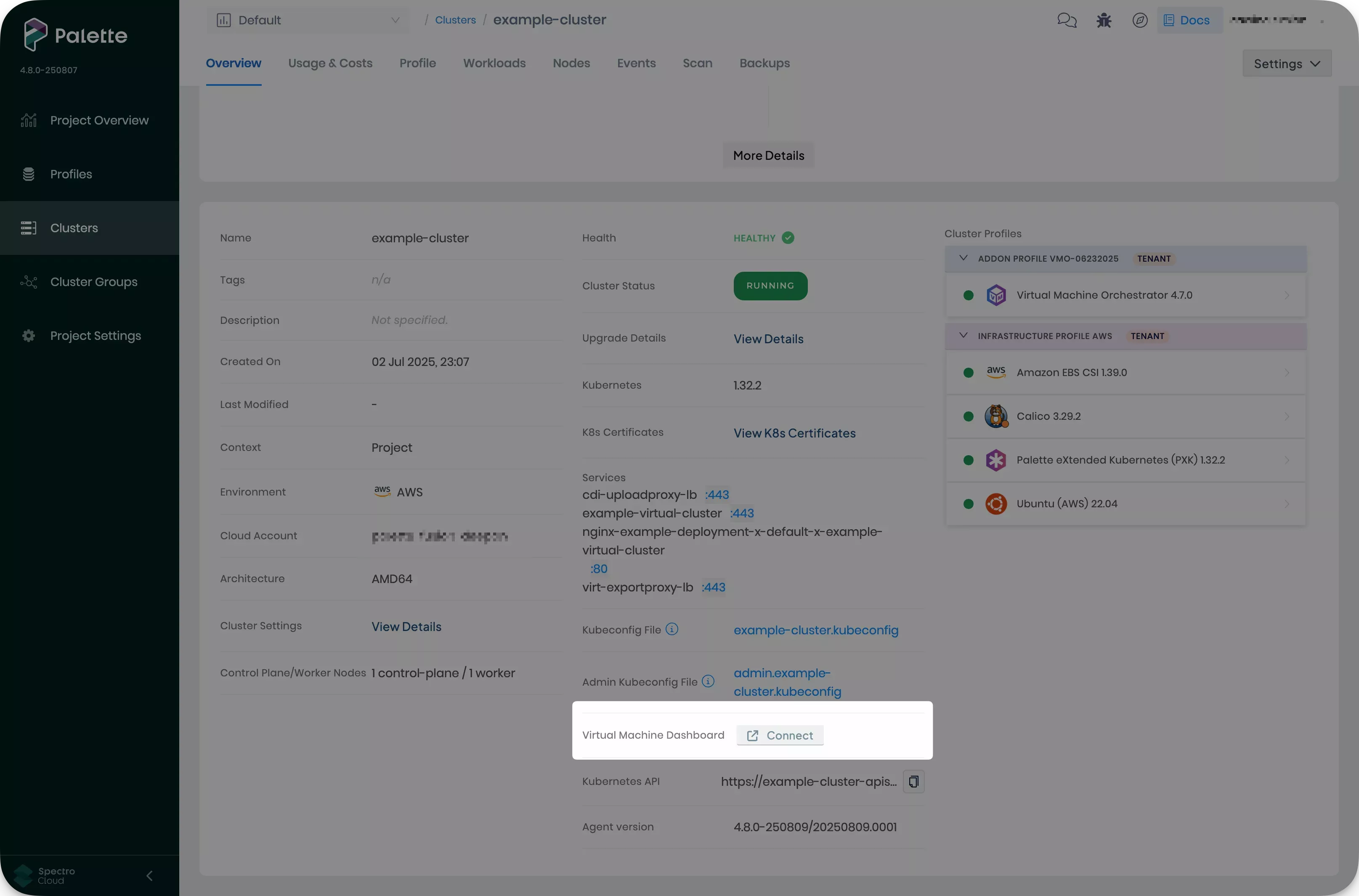
You can bookmark your configured address and access the VM dashboard for your cluster directly, without navigating through Palette. You need to log in with your Palette user credentials as usual to access it.