Configure Image Pull Secret for Security-Hardened Images
Beginning in 4.9.22, Spectro Cloud is initiating the shift to security-hardened images. While images have a smaller attack surface compared to physical and virtual machines, security-hardened images are built to reduce the attack surface further by containing only the essential runtime components an application needs. They have strict Service Level Agreements (SLAs) that require the images to be regularly scanned for vulnerabilities, rebuilt, and patched, keeping the number of CVEs to a minimum. These images also contain artifacts such as Software Bill of Materials (SBOMs) and cryptographic signatures to verify that the image has not been tampered with.
As a result of this transition, all images hosted in Spectro Cloud's OCI registries must now be authenticated and retrieved using image pull secrets. Like activation keys, these secrets are obtained from your Spectro Cloud customer support representative; they are intended for long-term use and only need to be configured once as part of your initial setup process. If you need to rotate the secret as part of your organization's security policy, contact support to request a new one.
Once configured, Palette propagates the secret to the management plane, PCG, and managed workload clusters.
Your workload clusters must also meet minimum containerd and Palette agent versions to use security-hardened images. Refer to Prepare Clusters for Security-Hardened Images for more information.
Configuring an image pull secret is optional today, but it will be mandatory in an upcoming release, so configure it as soon as possible to avoid service disruptions. If your installation pulls images from the Spectro Cloud registry instead of a local registry, configure the secret before you upgrade or install. Until you do, Local UI and the system console display a warning. The warning does not block the upgrade or installation, and existing clusters and workloads are unaffected. However, new cluster deployments and day-2 operations that pull Spectro Cloud images fail until the secret is configured. Refer to the Announcements page for the latest updates.
When to Configure Image Pull Secret
Depending on how your environment retrieves images, you may or may not need to configure Spectro Cloud's image pull secret.
Review the following sections to learn if your environment requires configuration.
Configuration Required
Non-airgapped self-hosted Palette environments that pull images directly from Spectro Cloud-owned OCI registries must configure an image pull secret. This does not include environments that use mirror registries or image swap configurations to redirect image pulls to a private registry.
Configuration Not Required
Image pull secrets are managed by Spectro Cloud. While you do not need to configure the pull secret, you must ensure that the secret propagates to your workload clusters. This happens automatically unless there are connectivity constraints from your workload clusters to the Palette management plane.
-
SaaS deployments - Image pull secrets are managed automatically on the backend. For multi-tenant SaaS, no action is needed; for dedicated SaaS customers with access to the system console, consult with your customer support representative.
-
Airgapped self-hosted Palette environments - The Spectro Cloud-owned images are pulled directly from your local registry and do not need the Spectro Cloud's OCI registry pull secret.
-
Environments with configured mirror registries or image swaps - If your non-airgapped self-hosted Palette environment pulls all Spectro Cloud-owned images from a custom or private registry through mirror registries or image swaps, you do not need to configure the image pull secret.
-
Self-hosted OCI registries with pull-through cache - If you are using a registry that uses pull-through cache (for example, a Harbor proxy cache project or a JFrog Artifactory remote repository), you must configure the hardened image registry credentials at the cache level.
Configure Image Pull Secret
Depending on your installation method, you can configure Spectro Cloud's image pull secret during or after installing self-hosted Palette.
During Installation
Adding an image pull secret during installation is supported on the following deployment models:
- Helm chart installations
- Palette Management Appliance installations, configured in Local UI as a profile variable
- Palette CLI installations, configured with
docker loginon the installer host
If you skip the secret during installation, you can configure it post-installation using the system console.
Helm Chart Installations
For self-hosted Palette environments installed on an existing Kubernetes cluster using Helm charts, you can apply your image pull secret during the installation process.
| File | Parameter |
|---|---|
palette/values.yaml | global.imagePullSecret.dockerConfigJson |
extras/cert-manager/values.yaml | imagePullSecret.dockerConfigJson |
For the full installation process, refer to the installation guide.
Palette Management Appliance Installations
For self-hosted Palette environments installed with the Palette Management Appliance, you provide the image pull secret in Local UI during Day-0 cluster setup. The secret is added to the cluster profile as the optional Image pull secret profile variable and propagated to every layer in the infrastructure and add-on profiles that pulls images from Spectro Cloud OCI registries.
Configure the following profile variable in the Profile Config step of the cluster creation flow.
| Profile variable | Description | Type | Default |
|---|---|---|---|
| Image pull secret (Optional) | The image pull secret provided by Spectro Cloud support, encoded in Base64. The value is masked in Local UI. Leave the field blank if your appliance is airgapped and all workload clusters use mirror registries or image swap, or if you plan to add the secret later through the system console. | Base64 encoded string | No default |
The variable is optional. If you leave it blank, the installation completes and the appliance operates normally; you can add or rotate the secret afterward from the system console using the Post-Installation steps.
For the full installation process, refer to the installation guide.
Palette CLI Installations
For self-hosted Palette environments installed with the Palette CLI, you must authenticate to the Spectro Cloud OCI registry before you start the installation. The Palette CLI reuses the resulting Docker credentials, so all subsequent image pulls include the image pull secret.
Complete the following steps on the Linux host from which you invoke the Palette CLI.
-
Save the image pull secret file provided by Spectro Cloud support as
imagepullsecret.jsonon the installer host. -
Authenticate to the Spectro Cloud OCI registry with the image pull secret.
cat imagepullsecret.json | docker login --username _json_key --password-stdin https://us-docker.pkg.devThe command returns Login Succeeded when the credentials are accepted.
-
Start the installation with the Palette CLI. Refer to the installation guide for the full sequence of prompts.
palette ec installTo deploy a self-hosted Private Cloud Gateway (PCG), run
palette pcg installinstead. Refer to the PCG deployment guides for the full sequence of prompts.
If you do not run docker login before starting the installation, the CLI can still complete without the image pull
secret. You can add or rotate the secret afterward from the system console using the Post-Installation
steps.
Post-Installation
You can also configure the image pull secret after Palette is installed. Configuring it before you upgrade or install is recommended, because it clears the warning and prevents new cluster deployments and day-2 operations from failing.
Configuring an image pull secret is currently optional. Once it is mandatory, image pull secrets must be added during the installation process. At that time, the following system console method will only be used to rotate the image pull secret if required by your organization's security policy.
Prerequisites
-
A self-hosted instance of Palette.
-
Access to the Palette system console.
-
An image pull secret provided by Spectro Cloud support.
Enablement
-
Log in to the Palette system console.
-
From the left main menu, select Administration.
-
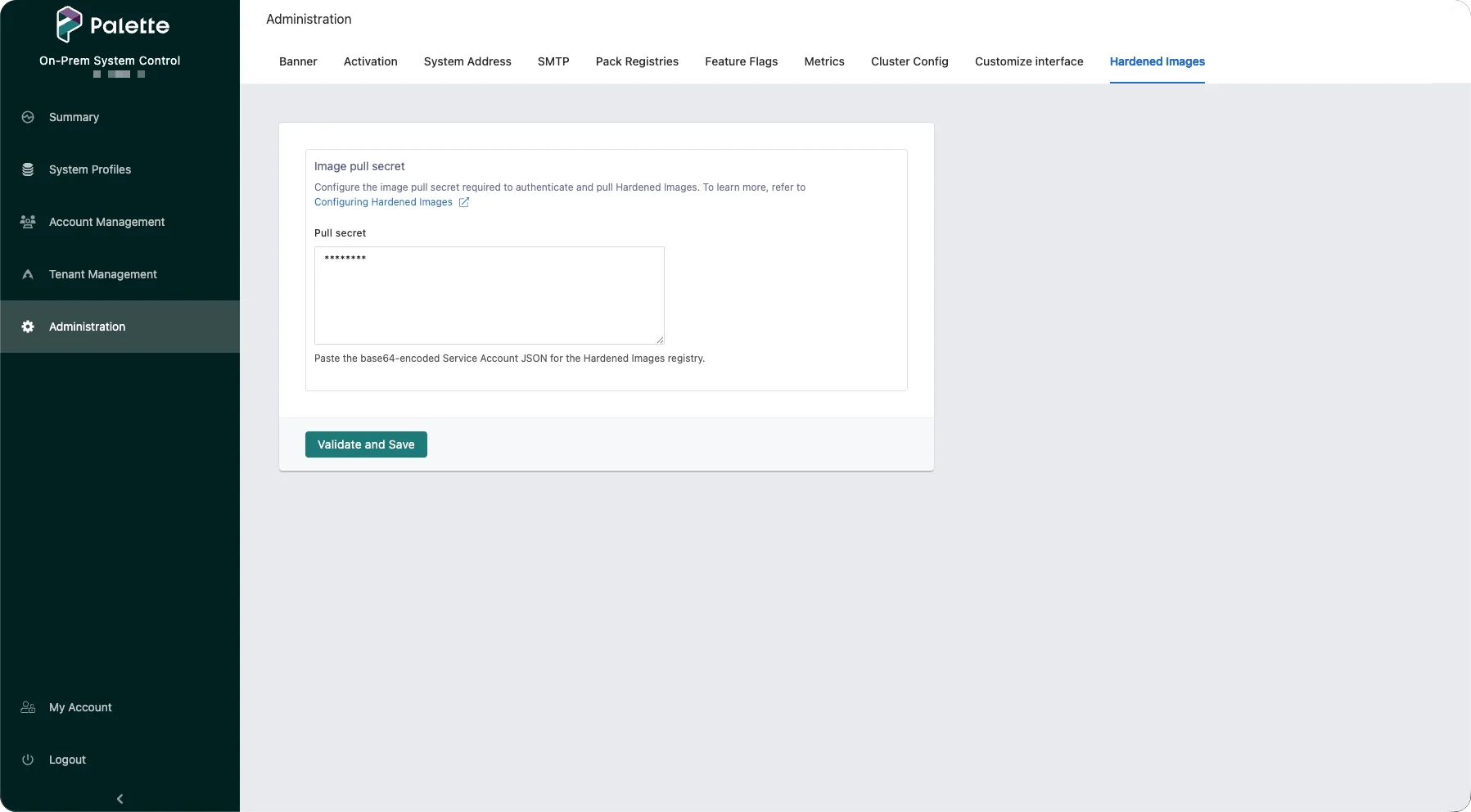
Select the Hardened Images tab.
-
In the Pull secret field, paste the image pull secret you received from Spectro Cloud support.
-
Select Validate and Save.
If the secret is valid, it is saved and distributed to the management plane, workload clusters, and PCGs. If you need to rotate your image pull secret for any reason, repeat these steps, and paste your new secret into the Pull secret field.
If the system console is unavailable and you need to immediately configure the image pull secret so that clusters can pull images, you can use the terminal to create the secret in the management cluster so it can propagate to the workload clusters. For more information, refer to Breakglass scenario: Manually create secret in management plane.
Validate
- UI
- Terminal
-
Log in to the Palette system console.
-
From the left main menu, select Administration.
-
Select the Hardened Images tab.
-
Verify that the Pull secret field displays a masked secret.
-
Open a terminal session in an environment that has network access to the cluster. Set the
KUBECONFIGenvironment variable to the file path of your cluster's kubeconfig that Palette is installed on.export KUBECONFIG=<path-to-kubeconfig> -
Issue the following command to verify the secret propagated to your management cluster matches the one configured in the system console.
kubectl get secret spectro-image-pull-secret --namespace hubble-system --output yamlExample outputapiVersion: v1
data:
.dockerconfigjson: abcdEFGhiJKlmnOPQrSTUVwX... # output omitted for brevity
kind: Secret
metadata:
annotations:
meta.helm.sh/release-name: hubble
meta.helm.sh/release-namespace: default
creationTimestamp: "2026-06-18T22:33:37Z"
labels:
app: spectro
app.kubernetes.io/managed-by: Helm
module: hubble
name: spectro-image-pull-secret
namespace: hubble-system
resourceVersion: "28192"
uid: c7991fac-2ec0-4419-b451-10c82208f8e5
type: kubernetes.io/dockerconfigjson
Monitor Propagation of the Image Pull Secret
Palette automatically propagates the image pull secret to clusters. You can track the status of this propagation to determine whether every cluster received the secret. The system console shows which tenants have clusters that did not receive the secret. You can then drill down into each tenant to find which clusters do not have the secret.
Prerequisites
- Palette 4.10.13 or later.
- The system console requires system administrator access to a self-hosted deployment.
- The Tenant Settings view requires tenant administrator access to the tenant you want to inspect.
Monitor Propagation from the System Console
System administrators of a self-hosted deployment can use the system console when they want to determine which tenants are missing the image pull secret on one or more clusters.
-
Log in to the Palette system console.
-
From the left main menu, select Administration.
-
Select the Hardened Images tab.
-
Scroll to the propagation status panel below the Pull secret field. The panel reports one of the following states:
- Propagation In Progress: Palette is still distributing the pull secret. Wait for the state to update.
- Propagation Complete: every tenant received the pull secret on every cluster. No action is required.
- Propagation Failed: one or more tenants have clusters that did not receive the pull secret.
-
When propagation has failed, review the tenant table below the banner. Each row shows the tenant and a Clusters ratio of clusters that received the secret over the tenant's total clusters. Use the following controls to work with the table:
- Filter by tenant name: enter a tenant name to narrow the list.
- Refresh: fetch the latest propagation status.
- Export as CSV: download the tenant list for offline review.
- Ignore this tenant: select the ignore action on a row to ignore the tenant when calculating propagation failures.
-
To investigate why the clusters within a tenant did not receive the pull secret, follow the steps in Monitor Propagation from Tenant Settings using an account with tenant administrator access to that tenant.
Monitor Propagation from Tenant Settings
Tenant Settings names the clusters in your tenant that did not receive the pull secret and shows the reason each one failed, so you can act on the specific clusters.
-
Log in to the Palette as a tenant administrator.
-
Select Tenant Settings.
-
Under Security, select Hardened Images.
-
Review the table. Each row shows the affected cluster, its project, and the failure reason. Common failure reasons include connectivity loss to the management plane, the Pause Agent Upgrades feature excluding the cluster from Palette agent upgrades or a Palette version older than 4.10.13 running on the cluster. For guidance on interpreting each reason and restoring propagation, refer to the Image Pull Secret Not Propagated to Workload Clusters scenario.
-
Use the following controls to work with the table:
- Search: enter a cluster name to narrow the list.
- Project: filter the list to clusters in a specific project.
- Failure Reason: filter the list to clusters that failed for a specific reason.
- Refresh: fetch the latest propagation status.
- Export as CSV: download the cluster list for offline review.
- Ignore this cluster: select the ignore action on a row to exclude the cluster when calculating propagation failures.