Prepare Environment
Your AWS Outposts server requires you to configure your capacity and a subnet before you can use it with Palette.
Prerequisites
-
An installed AWS Outposts server. AWS manages the delivery and initial configuration of the AWS outposts server at your site.
-
An active Palette account.
-
Access to the AWS CLI.
-
A Virtual Private Cloud (VPC) configured for use with AWS Outposts.
Configure the Capacity
Perform the following steps to set your AWS Outposts server capacity.
-
Log in to the AWS Console. Select the AWS Outposts service.
-
Select your Outposts server.
-
Select Capacity tasks from the left main menu. Click Create capacity task.
-
Select the Resource ID corresponding to your Outpost server.
-
Select the Asset ID corresponding to the C6id instance family. Click Next.
-
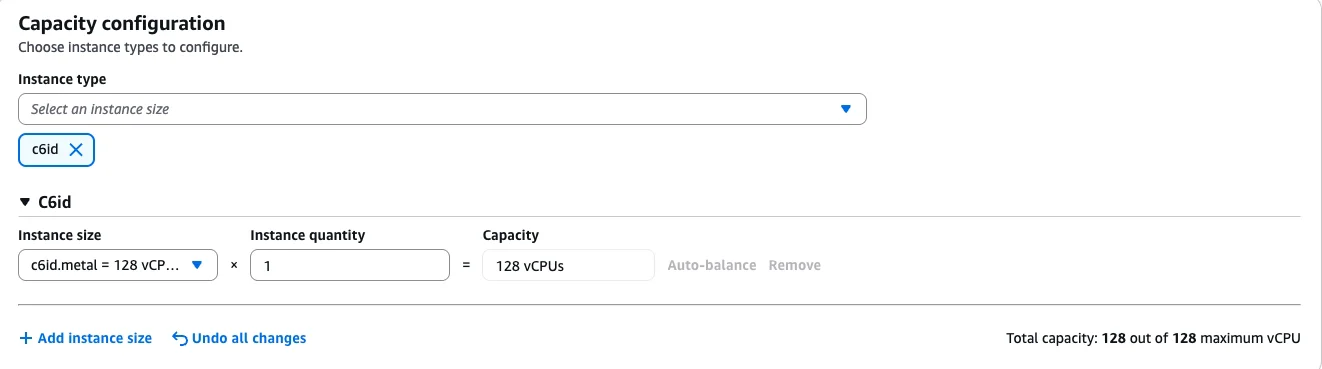
Set the Instance size to c6id.metal and the Instance quantity to 1. Click Next.
-
Review your changes and create the capacity task.
The capacity creation may take a few hours.
Create a Subnet
-
Log in to the AWS Console. Select the AWS Outposts service.
-
Select your AWS Outposts server.
-
From the Actions menu, select Create a subnet.
-
Select the VPC ID corresponding to your Outposts instance.
-
Fill in a CIDR block corresponding to your environment in the IPv4 subnet CIDR block field.
-
Select Create subnet.
-
In the AWS CLI, execute the following command to enable the subnet as a Local Network Interface (LNI) for anything with device index 1. This allows instances on the Outpost server to connect to your on-premises network, which is required for Palette Edge communication.
aws ec2 modify-subnet-attribute
--subnet-id <subnet-id>
--enable-lni-at-device-index 1infoMake a note of your new subnet name. It is required to create your Edge host.