Deploy Edge Hosts on MAAS
Palette Edge supports deployment on MAAS-managed bare-metal machines and LXD VMs. You can use MAAS to provision hosts, register them with Palette, and deploy clusters on them just like any other Edge host. This enables consistent and automated deployments across both physical and virtual infrastructure managed by MAAS.
Limitations
- MAAS image creation is supported only for appliance-mode Palette eXtended Kubernetes - Edge (PXK-E) deployments. Other Kubernetes distributions and agent-mode deployments are not supported by this workflow.
- MAAS-based Edge deployments are verified only with Calico as the Container Network Interface (CNI) and Longhorn as the Container Storage Interface (CSI).
- For MAAS-based deployments, the Kairos
installstage in user data is not used. Any GRand Unified Bootloader (GRUB) configuration or mount customizations must be applied using other Kairos stages or overlay files. Refer to Edge Installer Configuration Reference for details on the available stages.
Prerequisites
-
A MAAS image created according to the Build MAAS Images guide.
- If you did not embed user data in the MAAS image, you need a Palette registration token to pair your Edge hosts with Palette.
-
A MAAS-managed bare-metal machine or LXD virtual machine.
-
A user and a machine with permissions to upload and publish custom images to MAAS. The machine must have the MAAS CLI installed and be able to access the MAAS API.
-
MAAS-based Edge deployments require additional disk space on the target machine. The space allocated to the
UBUNTU_ROOTFSpartition (~3 GB) is not reclaimed after deployment, reducing the size ofCOS_PERSISTENT. If content is bundled into the image at build time, additional disk space equal to the size of the content partition is also not reclaimed dynamically. Ensure the target machine has sufficient disk capacity to accommodate theUBUNTU_ROOTFSand content partitions. -
The target machine must either be configured for Unified Extensible Firmware Interface (UEFI) boot mode or, if the boot mode is not set to UEFI, have UEFI-based boot options prioritized. Legacy Basic Input/Output System (BIOS) boot mode is not supported for this workflow.
For MAAS-managed bare-metal machines, verify the UEFI-related boot settings and adjust the boot order if needed directly in the machine firmware:
-
Access the machine console (for example, using a Windows jump host).
-
Reboot the machine and press F11 during boot to enter the BIOS/UEFI setup.
-
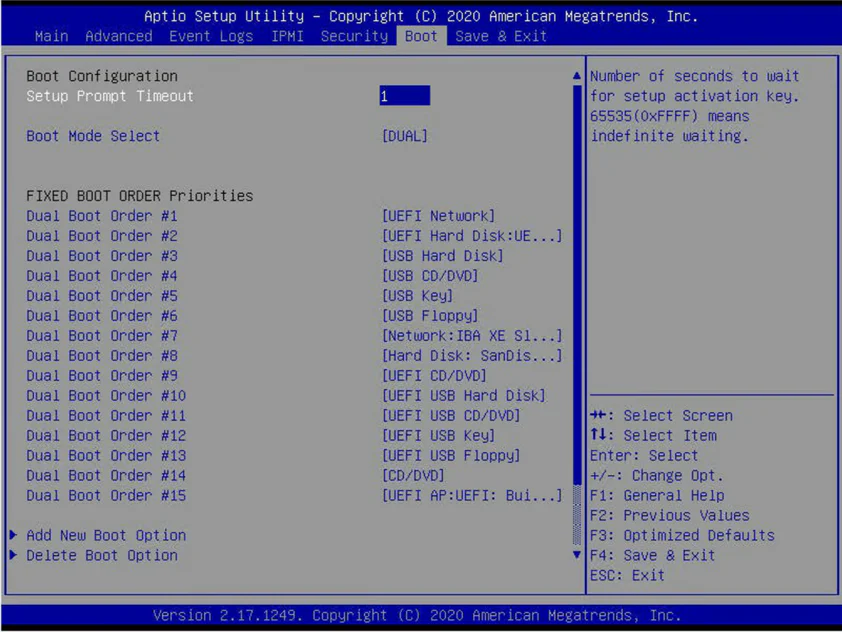
In the Boot menu, check the current boot mode. If it is not set to UEFI, ensure that UEFI Network is first in the boot order, and the UEFI local disk entry (for example, UEFI Hard Disk:UEFI OS) is second.
The following screenshot shows an example of the required boot order configured.
For LXD VMs managed by MAAS, ensure the VM is created with UEFI boot enabled. You can verify the machine configuration in the MAAS UI by opening the machine Summary page and checking the Boot mode. It must be set to UEFI before deploying the Edge host.
-
Deploy MAAS Edge Host
-
Copy the MAAS image from the system where it was built to the machine you will use to access MAAS. The following command is an example that copies the
custom-maas-image.raw.gzimage to the localDownloads/directory.Example commandscp ubuntu@10.10.150.244:/home/ubuntu/CanvOS/build/custom-maas-image.raw.gz ~/Downloads/ -
Use the following command to log in to MAAS. Replace
<MAAS-URL>and<API-KEY>with your MAAS endpoint and API key. Replaceadminwith the name of your MAAS CLI profile.maas login admin http://<MAAS-URL>:5240/MAAS <API-KEY> -
Upload the custom image to MAAS using the
maas <profile> boot-resources createcommand. The following table describes the parameters used in the command.Parameter Description <profile>The MAAS CLI profile name created using the maas logincommand.nameThe unique identifier for the custom image within MAAS. Must follow MAAS naming conventions (lowercase, no spaces, and typically using /as a namespace separator).titleA human-readable label displayed in the MAAS UI. architectureThe target CPU architecture for the image. Use amd64/genericfor AMD64 (x86_64) MAAS deployments.filetypeThe format of the uploaded image. Use ddgzfor compressed raw disk images.content@Path to the image location. The following command serves as an example.
Example commandmaas admin boot-resources create \
name='custom/my-image' \
title='My Custom Image' \
architecture='amd64/generic' \
filetype='ddgz' \
content@=~/Downloads/custom-maas-image.raw.gz -
In the MAAS web UI, open the page for the machine you want to use as your Edge host. Select Actions > Deploy.
-
Select the Custom value in the OS field. In the Release field, select the custom MAAS image you uploaded in step 3.
-
(Optional) If you did not embed the user data in the custom image, enable Cloud-init user-data and paste the required user data. For instructions on preparing user data, refer to Prepare User Data and Argument Files.
-
Click Deploy machine to start the deployment.
Validate
-
Once the deployment finishes, log in to Palette.
-
From the left main menu, select Clusters.
-
At the top of the Clusters page, click the Edge Hosts tab. Once the Edge host is registered with Palette, it appears in the grid.
Next Steps
Once an Edge host is registered with Palette, you can allocate the Edge host to a cluster. For more information, refer to Create Cluster Definition.