Create HyperShift Host Cluster
The HyperShift host cluster is a MAAS cluster with the HyperShift Operator installed as a system app. It runs the OpenShift control plane components as pods for all downstream OpenShift workload clusters. You must deploy this host cluster in Palette before creating any OpenShift workload clusters.
Limitations
- The HyperShift host cluster cannot be deleted if there are any workload clusters using it as a host. You must delete all associated workload clusters before deleting the host cluster.
Prerequisites
-
A MAAS account registered in Palette. All MAAS-registered Palette accounts must use either a System Private Gateway or Private Cloud Gateway (PCG) to connect to the MAAS environment. For more information on which to use, refer to the MAAS Architecture guide.
- If your Palette instance does not have a direct connection to the MAAS environment, you must deploy a PCG to your MAAS environment.
- If you are using a self-hosted Palette or Palette VerteX instance with a direct connection to your MAAS environment, you can use Palette's System Private Gateway.
-
The HypershiftOpenshiftCluster feature flag enabled in the Palette system console.
-
The Cluster Admin role in Palette.
- If you have not yet created a cluster profile for the HyperShift host cluster, you also need the Cluster Profile Admin role.
-
A cluster profile for the HyperShift host cluster configured with the following packs:
- Palette eXtended Kubernetes (PXK) for the Kubernetes layer.
- HyperShift Operator added as a System App layer.
Refer to Cluster Profiles for guidance on creating cluster profiles.
-
Sufficient bare-metal resources in MAAS for the host cluster nodes. The host cluster must have enough capacity to run the OpenShift control plane pods for all intended workload clusters. A minimum of three control plane nodes spread across different availability zones is recommended for high availability.
Enablement
-
Log in to Palette.
-
Ensure you are in the correct project scope.
-
From the left main menu, select Clusters and click Add New Cluster.
-
In the Data Center section, select MAAS, then click Start MAAS Configuration.
-
Enter the basic information for your cluster, including the Cluster Name, Description, and Tags.
From the Cloud Account drop-down menu, select your MAAS cloud account.
Click Next when done.
-
Choose between deploying your cluster using individual cluster profiles or a single cluster template.
- Cluster Profiles
- Cluster Templates
-
In the Cluster setup type window, choose Cluster Profiles > Add Cluster Profile.
-
Select the appropriate full or infrastructure cluster profile and Confirm your selection.
-
Review the layers of your cluster profile. Use the drop-down menus to select the appropriate cluster profile version, add necessary add-on profiles, and make changes to YAML configuration files as needed. When finished, select Next.
info- Cluster profile versions linked to cluster templates cannot be used in the cluster profile workflow.
- For ease of reuse and to persist changes across clusters using the same cluster profile, we recommend creating a new version of your cluster profile rather than making inline changes.
-
In the Cluster setup type window, choose Cluster Template > Select Cluster Template.
-
Select the appropriate cluster template and Confirm your selection.
-
Expand the Maintenance policy and Linked profiles panels to review the configuration of your cluster template.
If you need to make any changes, such as swapping your maintenance policy or updating your cluster profile version, you must exit the cluster deployment workflow and modify your cluster template before proceeding. If no changes are needed, select Next.
-
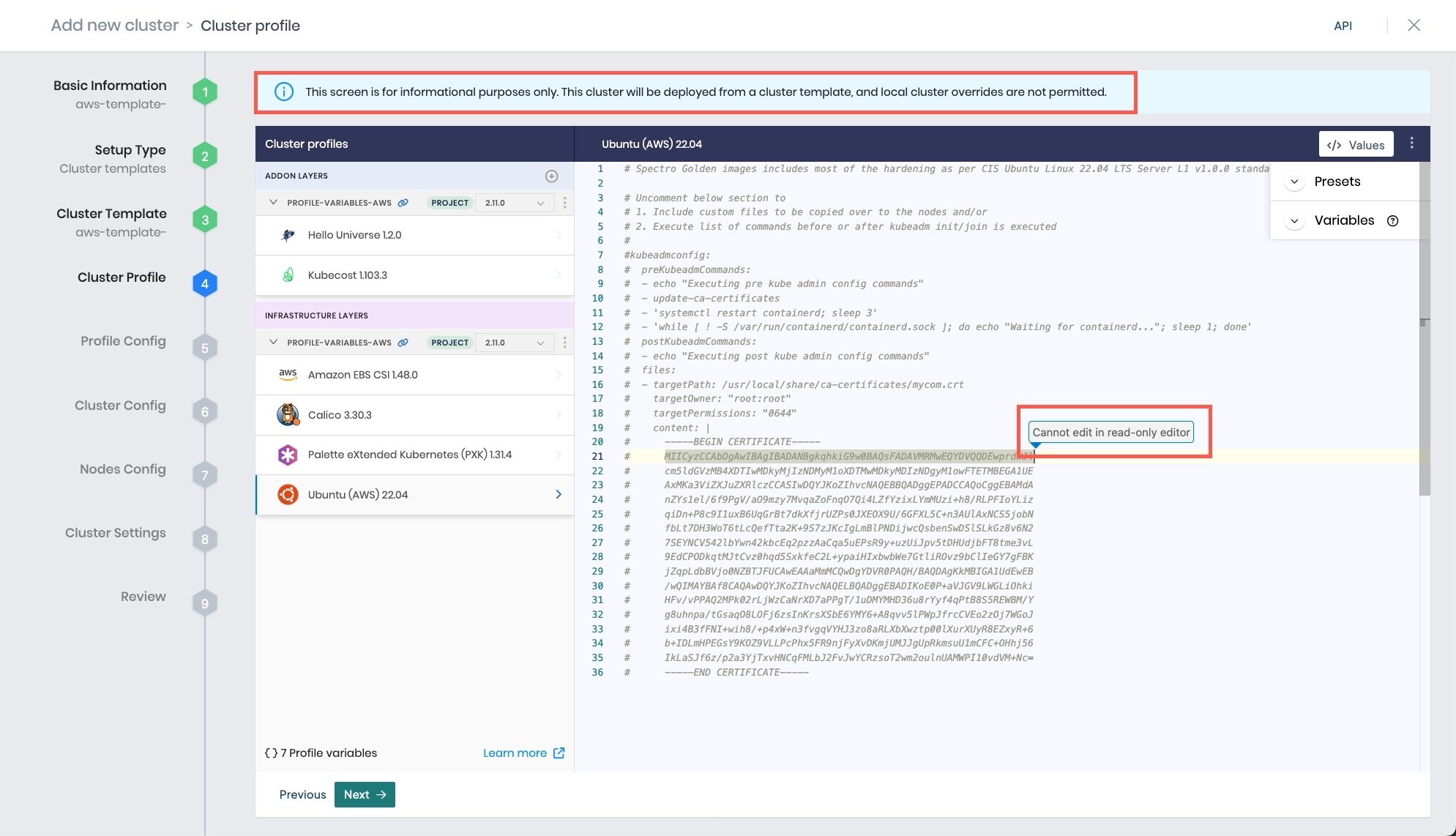
Review the layers of your cluster profile. If no changes are needed, select Next.
warningCluster profile changes, such as modifying your cluster profile version, adding additional add-on profiles, and editing YAML configuration files, are not allowed when deploying a cluster. Once a cluster profile is linked to a cluster template, that version of the cluster profile is locked to prevent configuration drift across clusters. If you need to make changes, you must create a new version of your cluster profile and modify your cluster template to use the new version.
-
The Profile variables configuration window opens if your cluster profile is configured to use cluster profile variables. Fill in the appropriate values, and select Next.
-
Fill out the following fields on the Cluster Config step. Click Next when done.
Field Description Domains Register a DNS record in the selected domain for the deployed cluster. The DNS record links to the IP addresses of the control plane nodes. SSH Keys (Optional) Inject public Secure Shell (SSH) keys into ~/.ssh/authorized_keyson each control plane and worker node, without removing existing MAAS users. The list is populated using the keys in Tenant Settings or Project Settings > Security > SSH Keys. Select Add Item to add additional keys. Refer to SSH Keys on MAAS Cluster Nodes for details on supported distributions.NTP Servers (Optional) Specify Network Time Protocol (NTP) servers for the cluster nodes. The servers you provide override the machine image defaults. We recommend specifying at least one NTP server to prevent time drift issues. Refer to NTP Servers on MAAS Cluster Nodes for details on supported distributions. Override Cluster API cluster configuration This feature is not supported on HyperShift host clusters. The Override Cluster API cluster configuration and Override Cluster API node pool configuration toggles in the Palette UI have no effect on this cluster type. Refer to Override Cluster API (CAPI) Properties for the list of supported providers. -
Click the Host HyperShift-based control planes toggle to enable this cluster to deploy HyperShift control planes for OpenShift workload clusters. Click Next when done.
-
On the Nodes Config step, configure the control plane and, optionally, worker node pools.
The following input fields apply to MAAS node pools. For a description of input fields common across target platforms, refer to Node Pools. Click Next when done.
Cloud Configuration
Parameter Description Resource pool The MAAS resource pool from which to select available servers for deployment. Filter available servers to only those that have at least the amount of Minimum CPU and Minimum Memory selected. Minimum CPU The minimum number of CPU cores required for servers in this node pool. Minimum Memory The minimum amount of memory required for servers in this node pool. Availability zones Specify the Availability Zones (AZs) for the node pool. Tags Specify the MAAS machine tags so that Palette can deploy nodes onto the MAAS machines that match the provided tags. To learn more about MAAS tags, refer to the MAAS Tags documentation. -
On the Cluster Settings page, configure additional options as needed. If you are deploying your cluster using cluster templates, a Cluster Timezone is required.
Left Menu Item Additional Information Cluster Timezone Specify the time zone where your cluster is being deployed. The time zone is used in maintenance policies to determine when updates are rolled out to clusters deployed with cluster templates. Lock Profile Updates (Edge Native clusters only) Hold cluster profile updates on the Edge hosts until an operator at the device releases them in Local UI. Refer to Lock Profile Updates for more information. Manage machines Set an OS patching schedule and specify nodes behavior when creating your cluster, including upgrading your nodes to use the latest OS patch version and allowing reboots. Schedule scans Enable any scan options you want Palette to perform and select a scan schedule. Palette supports Kubernetes configuration security, penetration testing, and conformance testing. Refer to Compliance Scan for details on each scan type. Schedule backups Schedule backups for your entire cluster or etcd. Refer to Backup and Restore for more information. RBAC Map a set of users or groups to a Kubernetes Role-Based Access Control (RBAC) role. This is required when custom OpenID Connect (OIDC) is configured. Refer to the following guides for more information:
- Create Role Bindings
- Palette eXtended Kubernetes (PXK)Location Specify the location of your cluster by entering the address in the search bar and selecting one of the options in the drop-down. For example, London, Greater London, England, United Kingdom. This is used for display purposes and does not impact cluster functionality. -
Select Validate to review your cluster configuration and settings.
-
If no changes are needed, Finish Configuration to deploy the host cluster.
To monitor the status of your cluster deployment, from the left main menu, select Clusters and choose your cluster. The cluster Overview tab displays the status and health of your cluster, as well as deployment details. Use the Events tab to monitor the deployment in real time. Provisioning may take several minutes.
Validate
-
Log in to Palette.
-
Ensure you are in the correct project scope.
-
From the left main menu, select Clusters. The Clusters page lists all clusters that Palette manages.
-
Select the HyperShift host cluster. On the Overview tab, confirm the Cluster Status is Running and the Health status is Healthy.
-
In the Cluster Profiles section, confirm the HyperShift Operator system app is installed and in a healthy state (green icon).
Next Steps
Now that the HyperShift host cluster is running, you can create OpenShift workload clusters that use it to host their control plane components.