Set Up MCP Server with Cursor
This guide covers how to setup the Palette MCP server with Cursor.
Prerequisites
-
Ensure the following software is installed locally on your workstation:
- A container engine, such as Docker or Podman.
- Cursor. Refer to the Cursor Download page for more information.
-
A Palette account.
-
A Palette API key. Check out the Create API Key guide for more information.
Setup
-
Open a terminal session on your local machine.
-
(Optional) To save the secrets you need to configure the Palette MCP server in a file rather than pass them directly as variables, create an
.env-mcpfile. The file approach is more secure and manageable.-
Issue the following command to create the
.env-mcpfile in your home directory under the.palettefolder.mkdir -p ~/.palette
touch ~/.palette/.env-mcp -
Populate the
.env-mcpfile with the following required values. Refer to the Server Configuration section for further details on the MCP server configuration values.cat << EOF > ~/.palette/.env-mcp
PALETTE_HOST=<palette-api-endpoint>
PALETTE_API_KEY=<palette-api-key>
EOF
chmod 600 ~/.palette/.env-mcpinfoBy default, the server operates at the tenant scope. Every call sees results across every project that your credentials can access. To scope a request to a single project, mention the project by name or UID in your prompt instead of setting an environment variable; the assistant passes it as that call's
project_uidargument.
-
-
Issue the following command to create a folder to store kubeconfig files.
Replace
<local-path>with any folder on your machine.mkdir -p /<local-path>/kubeconfig
-
Open Cursor on your local machine. Navigate to Settings > Cursor Settings > Tools & MCP.
-
Select Add Custom MCP. The
mcp.jsonfile opens. -
Paste the following snippet in the file, replacing the placeholders with your local path values. Ensure that you provide full filepaths for the
kubeconfigfolder and.env-mcpfile, if you have configured one.If you want to use Podman, replace the command
"docker"with"podman".- .env-mcp File
- Environment Variables
"mcpServers": {
    "palette": {
    "command": "docker",
    "args": [
        "run",
        "--rm",
        "-i",
        "--pull",
        "always",
        "--mount",
        "type=bind,source=/<local-path>/kubeconfig,target=/tmp/kubeconfig",
        "--env-file",
        "/<local-path>/.palette/.env-mcp",
        "public.ecr.aws/palette-ai/palette-mcp-server:latest"
    ]
    }
}
Replace the environment variable values in the snippet below with your own values.
"mcpServers": {
    "palette": {
    "command": "docker",
    "args": [
        "run",
        "-i",
        "--mount",
        "type=bind,source=/<local-path>/kubeconfig,target=/tmp/kubeconfig",
        "--rm",
        "--pull",
        "always",
        "-e",
        "PALETTE_HOST=<palette-api-endpoint>",
        "-e",
        "PALETTE_API_KEY=<palette-api-key>",
        "public.ecr.aws/palette-ai/palette-mcp-server:latest"
    ]
    }
}infoTo enable write operations, such as create, update, or delete tools, append
"--allow-write"to theargsarray after the image name. By default, the server starts in read-only mode.warningA kubeconfig contains cluster credentials. When you retrieve one with
read_cluster_kubeconfig, passwrite_path(requires--allow-write) to have the server save it locally with0600permissions, and treat the saved file as sensitive. -
Save the
mcp.jsonfile and close it. -
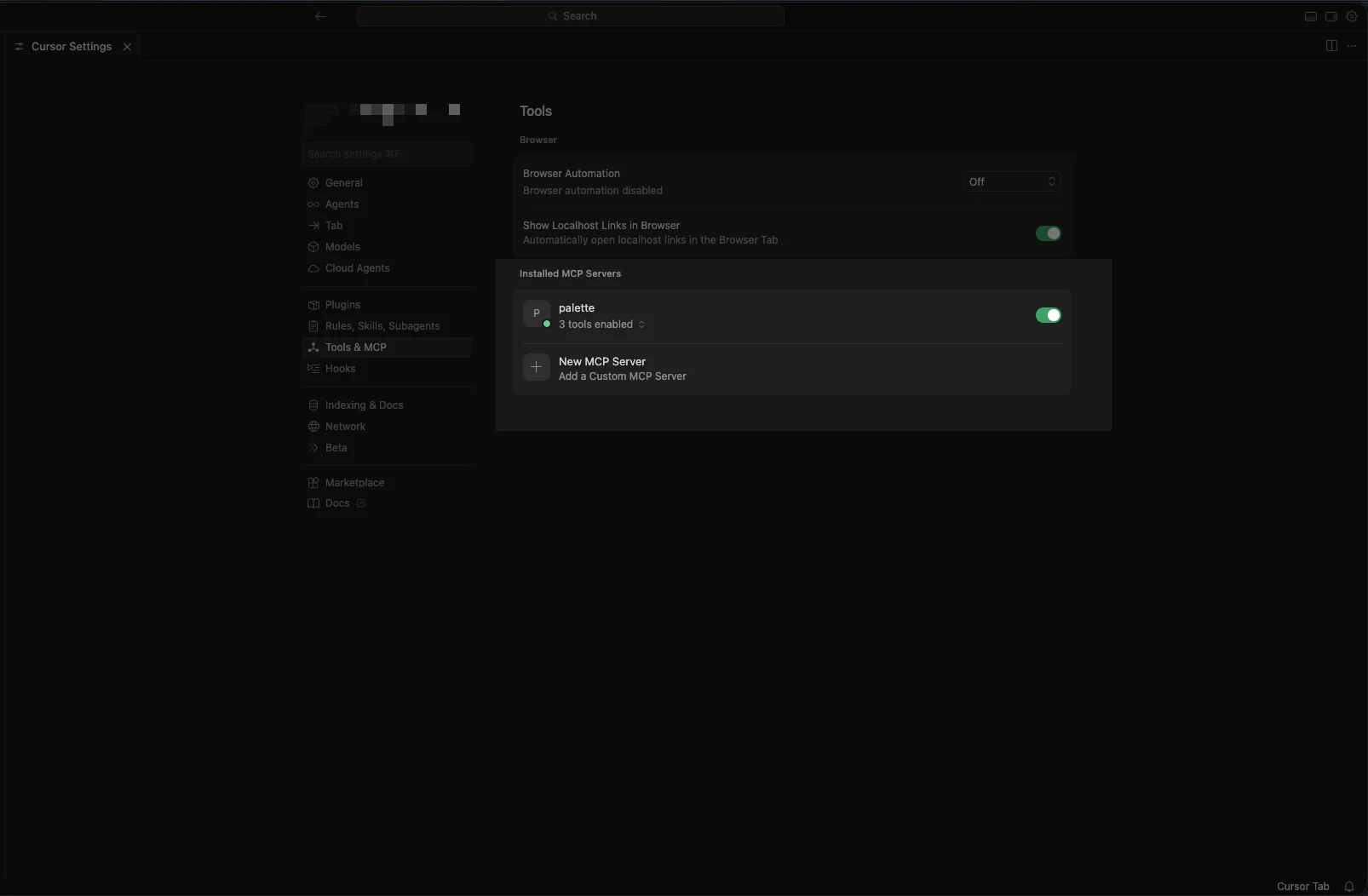
Navigate to Settings > Cursor Settings > Tools & MCP. Ensure that the palette MCP server is set up and enabled.
-
Install the four Palette diagnostic skills (
diagnose-cluster,diagnose-edge,health-overview, andaccess-review) from the Palette Agent Toolkit repository.npx skills add github.com/spectrocloud/palette-agent-toolkit/skills -
(Optional) We recommend adding an Agent Skill to enable Cursor to use kubeconfig files retrieved with
read_cluster_kubeconfigto access clusters, if you plan to use the files in ad-hockubectlworkflows.Issue the following command to create a new file for your Palette skill.
touch ~/.cursor/skills/palette-mcp-guidance.mdOpen the file in your preferred editor and paste the following snippet into it. Replace the
<local-path>placeholder with a directory where you want to store kubeconfig files.# Palette MCP Server
The Palette MCP server is a tool that you can use to interact with the Palette platform and its API. The MCP server is active as a container or a native binary and is accessible via the MCP protocol. A few things to keep in mind:
- When you retrieve a cluster kubeconfig with the `read_cluster_kubeconfig` tool, save the file to a local directory on your machine located at `<local-path>/kubeconfig`.
Set the KUBECONFIG environment variable to the local filesystem path or use the `kubectl` command with the `--kubeconfig` flag, but ensure the path is correct.
You can now use the Palette MCP server with Cursor.
Validation
-
Open Cursor on your local machine.
-
Open the Cursor Chat sidebar using the shortcut CMD + L or CTRL + L. Send a query about your Palette environment to check if your MCP server is connected to Palette.
For example, you can ask "How many clusters do I have in Palette?" to learn more about your Palette clusters.
Example Output❯ How many clusters do I have in Palette?
From your Palette account (via the Palette MCP read_clusters call), you currently have 1 cluster.
| Name | State |
| aws-cluster-test | Running |
To enable write tools, such as create, update, and delete, append "--allow-write" to the args array in mcp.json
after the image name. By default, the server starts in read-only mode.
Next Steps
Refer to the Palette MCP Server Operations page for further examples on how to leverage the functionality of the MCP server.